WindowTabs
WindowTabs
Browser-style tabs for your desktop windows. Group windows from the same app or different apps, then switch between them with a click or keyboard shortcut.


Download · Getting started · Shortcuts · Build and run · Troubleshooting · What’s changed
[!IMPORTANT] Major update · v2026.10.07
Redesigned settings, light and dark themes, more shortcuts, saved workspaces and reliability fixes. This is a preview release. See what’s changed →
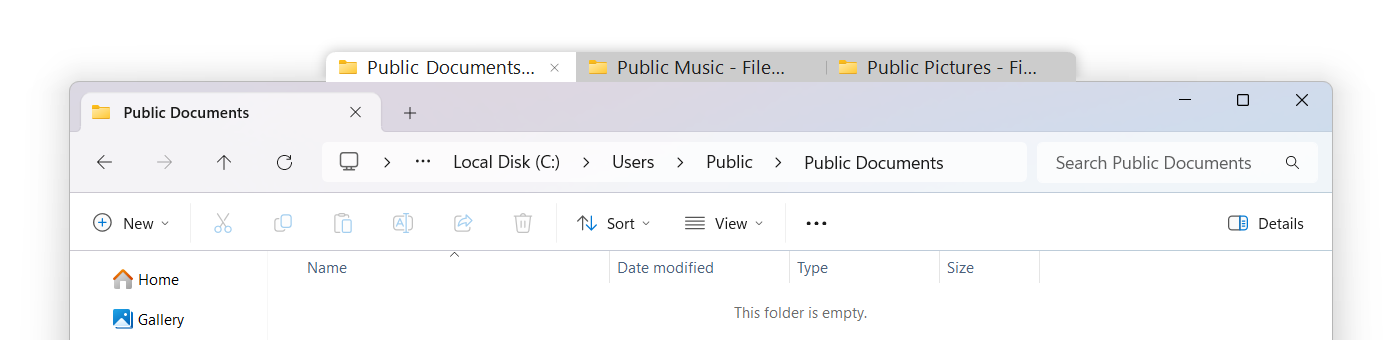
Light tabs
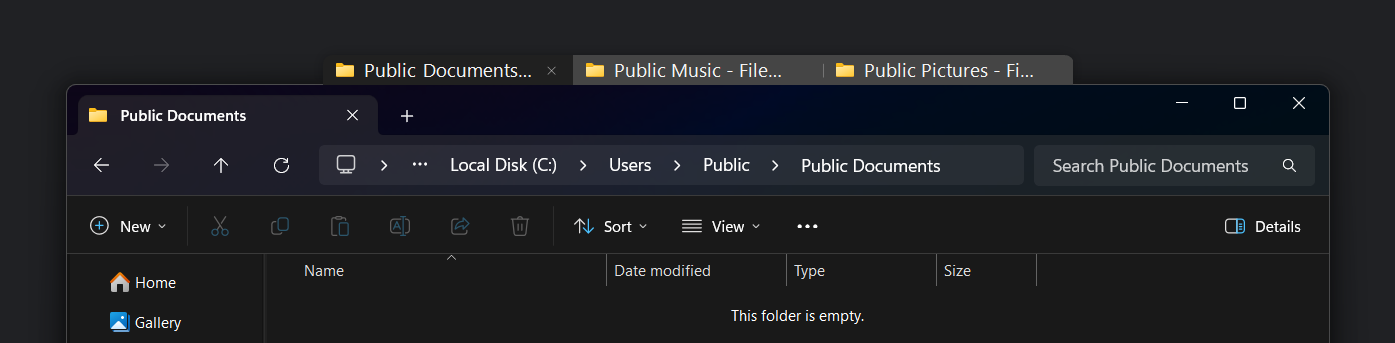
Dark tabs
Install and get started
For Windows 10 and 11. Download and run WindowTabs.exe—no installation needed.
- Download WindowTabs.exe under Assets on the Releases page.
- Save it in a permanent folder, then double-click it. Its icon appears in the system tray; check hidden icons if you don’t see it.
- For windows from the same app, right-click a tab and enable auto-grouping. Try it with two separate File Explorer windows.
- For windows from different apps, drag a tab onto another window’s tab bar to group them. Click a tab to switch; grouped windows move and resize together.
- Drag a tab away from the group to separate that window again.
Right-click a tab or the tray icon to open Settings. To quit, choose Exit from the tray menu. Your app windows stay open.
Customize WindowTabs
Right-click a tab to:
- Rename tab, choose a Tab color, or Show icons only.
- Turn off Enable tabs for … to stop adding tabs to that app.
- Enable auto-grouping for windows from the same app.
- Turn off number shortcuts if they conflict with the app’s own shortcuts.
- Change where tabs appear or when they hide.
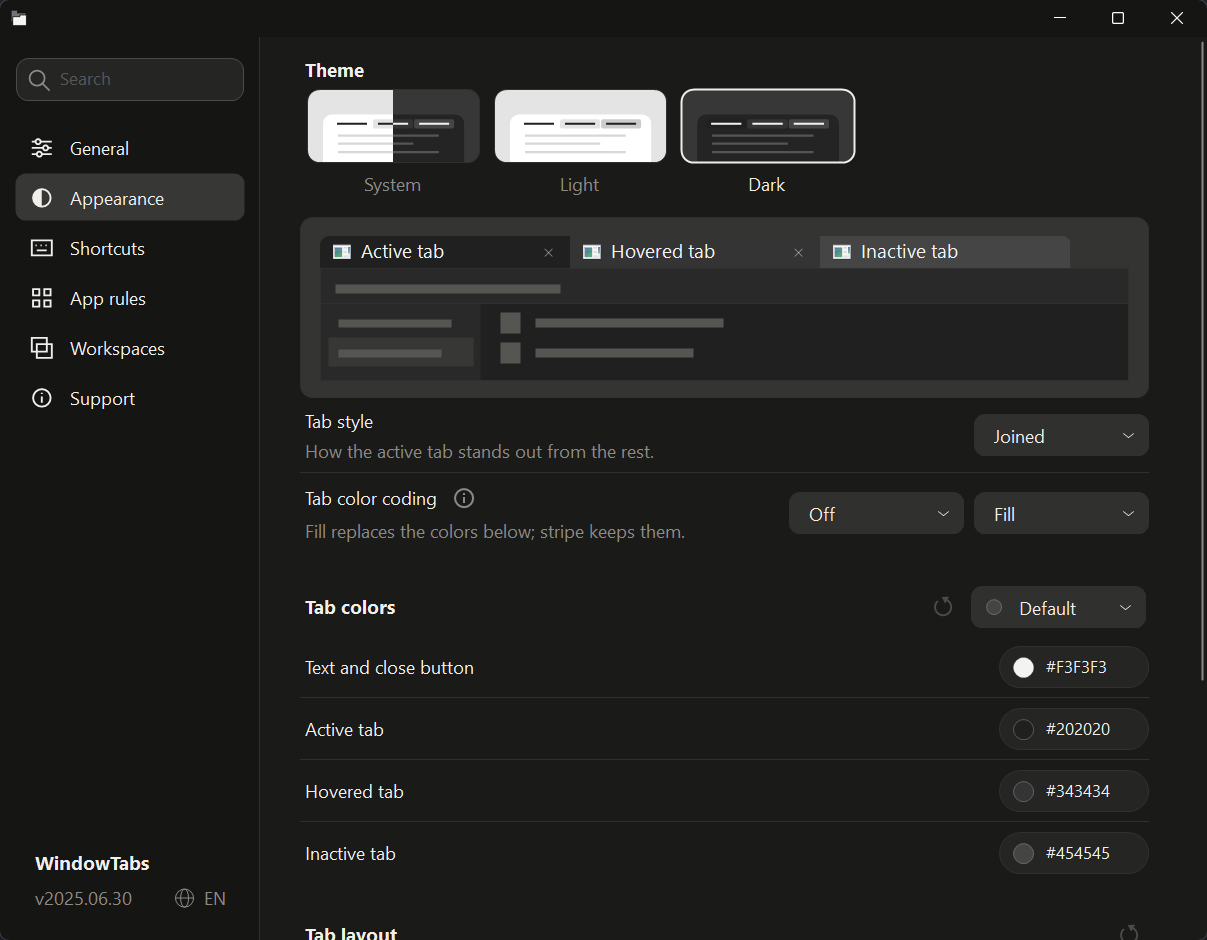
Open Settings to change appearance and behavior. Use the search box to find a setting. The interface supports English, 中文 and 日本語.
To set up automatic grouping for several apps, open Settings → App rules and turn on Auto-group beside each app you want to group.
| Page | What you can change |
|---|---|
| General | Startup, alignment, auto-hide, taskbar grouping and the optional Alt+Tab switcher |
| Appearance | Light/dark/system theme, tab style, colors, sizes and spacing |
| Shortcuts | Keyboard shortcuts and mouse controls |
| App rules | Which apps get tabs and automatic grouping |
| Workspaces | Saved groups and window positions |
| Support | Back up or reset settings, check releases and report problems |
Tabs hide when a window is maximized. Move the pointer to the top edge to show them. Change General → Auto-hide tabs to Never if you prefer to keep them visible.
Choose Joined, Folder or Floating tabs under Appearance. Pick a color preset, choose your own colors, or assign colors automatically to windows or apps. Automatic colors, two-step tab selection, switching on hover and the Alt+Tab replacement are off by default.
Keyboard and mouse
Default shortcuts; your saved settings may differ:
| Action | Default |
|---|---|
| Next tab in the current group | Ctrl + Alt + → |
| Previous tab in the current group | Ctrl + Alt + ← |
| Search tabs by title or app | Ctrl + Alt + T |
| Open a new window of the current app | Ctrl + Alt + N |
| Select tab 1–9 in the current group | Ctrl + 1–9 |
| Switch tabs with the mouse | Scroll over the tab bar, or Shift + scroll over a grouped window |
| Select a tab by its displayed key | Off; when enabled, Alt + S then a selection key |
Change or clear shortcuts in Settings → Shortcuts. Number shortcuts can use Ctrl or Alt. If they conflict with an app, disable them for that app from the tab’s right-click menu.
To select tabs by letter or number, enable Use a leader key to select tabs.
Press the configured shortcut (default Alt + S), then the key shown on the tab.
Choose 123456789, QWERTYUIOP, ASDFGHJKL;, or your own sequence. Keys follow tab
order; the current tab’s key is hidden. Esc cancels.
The optional Alt+Tab switcher offers icon and list views, and can show each group as one item. Enable it under General if you want to replace Windows’ switcher.
Save a workspace
Save your window groups and positions in Settings → Workspaces. To restore a workspace, open the apps first, then select the workspace and click Restore. Only matching open windows are restored; apps and documents are not opened for you.
Settings, portable use and updates
Changes save automatically. Settings normally live in
%AppData%\WindowTabs\WindowTabsSettings.json. Open Settings → Support to find
the file, export or import settings, or reset them to defaults.
To keep settings with the app, export them as WindowTabsSettings.json beside
WindowTabs.exe, then restart. Keep both files together when moving the app.
To upgrade, exit WindowTabs from the tray, replace the old WindowTabs.exe
with the new one, then run it. Your settings are kept.
Click the version number in Settings to Check Releases.
Troubleshooting
- Unexpected behavior after upgrading? Try Settings → Support → Reset to defaults. WindowTabs backs up your current settings before resetting and restarting, so you can import them back if needed.
- No tabs on a window? Check that tabs are enabled for its app under App rules. Some windows, such as dialogs, do not get tabs.
- Tabs disappeared after maximizing? Reveal them at the top edge, or choose General → Auto-hide tabs → Never.
- A shortcut conflicts with another app? Change or clear it under Shortcuts. For Ctrl/Alt + number conflicts, use the tab menu’s per-app option.
- WindowTabs crashed? Open Settings → Support → Crash log after restarting.
Still having trouble? Open an issue and describe what happened and how to reproduce it. Under Support, copy the troubleshooting report to include system and app details. It omits window titles and file paths; check screenshots and crash logs before sharing them.
Build and contribute
WindowTabs is an F# WinForms app on .NET Framework 4.8. Building requires the .NET SDK (tested with 10.0), or Visual Studio 2022/2026 with the .NET desktop development workload.
git clone https://github.com/leafOfTree/WindowTabs
cd WindowTabs
dotnet build WindowTabs.sln -c Release
.\WtProgram\bin\Release\WindowTabs.exe
Exit the app before rebuilding the same exe. To run the regression tests on an interactive Windows desktop:
powershell -NoProfile -ExecutionPolicy Bypass -File tests/Run-Tests.ps1
Start with AGENTS.md and architecture. See testing, settings and performance for details. Run native UI tests one at a time. Desktop E2E controls the mouse and keyboard; read the E2E guide before running it.
Pull requests trigger build and hosted desktop E2E checks. Merge only when both pass on the latest PR commit. Build checks include Release compilation, regression tests with at least 50% line and branch coverage, and Release smoke tests.
This project uses AI-assisted development. AI-assisted contributions are welcome. Please make sure you understand the changes, can explain what they do and why, and have tested them.
Maintainers: publish a release from a version tag.
Credits and license
Created by Maurice Flanagan in 2009 and later open-sourced as mauricef/WindowTabs. This project continues the work of redgis and payaneco.